
Reliable file backup for Windows
FreeThe backup is actually there when you need it
We wrote this for the pharmacy servers we look after, where the backup that came with the system copied one file at a time and couldn’t take a file that was open, which on a pharmacy server is the database. Clinic Backup copies the open files from a snapshot, checks every file after it lands, and only reports success when that’s true. Point it at the folders that matter, say where the copies go, and let it run overnight. Most nights it’s done in minutes, because only what changed gets copied. And it’s free, for anybody who wants a clean copy of their data.
Version 2.3.0 · Windows 10 & 11 (64-bit) · No charge, no account

What Clinic Backup does
Every file gets checked
Each file is compared against what landed on the destination. If anything comes up short, the run is marked failed so you know about it.
Handles files that are open
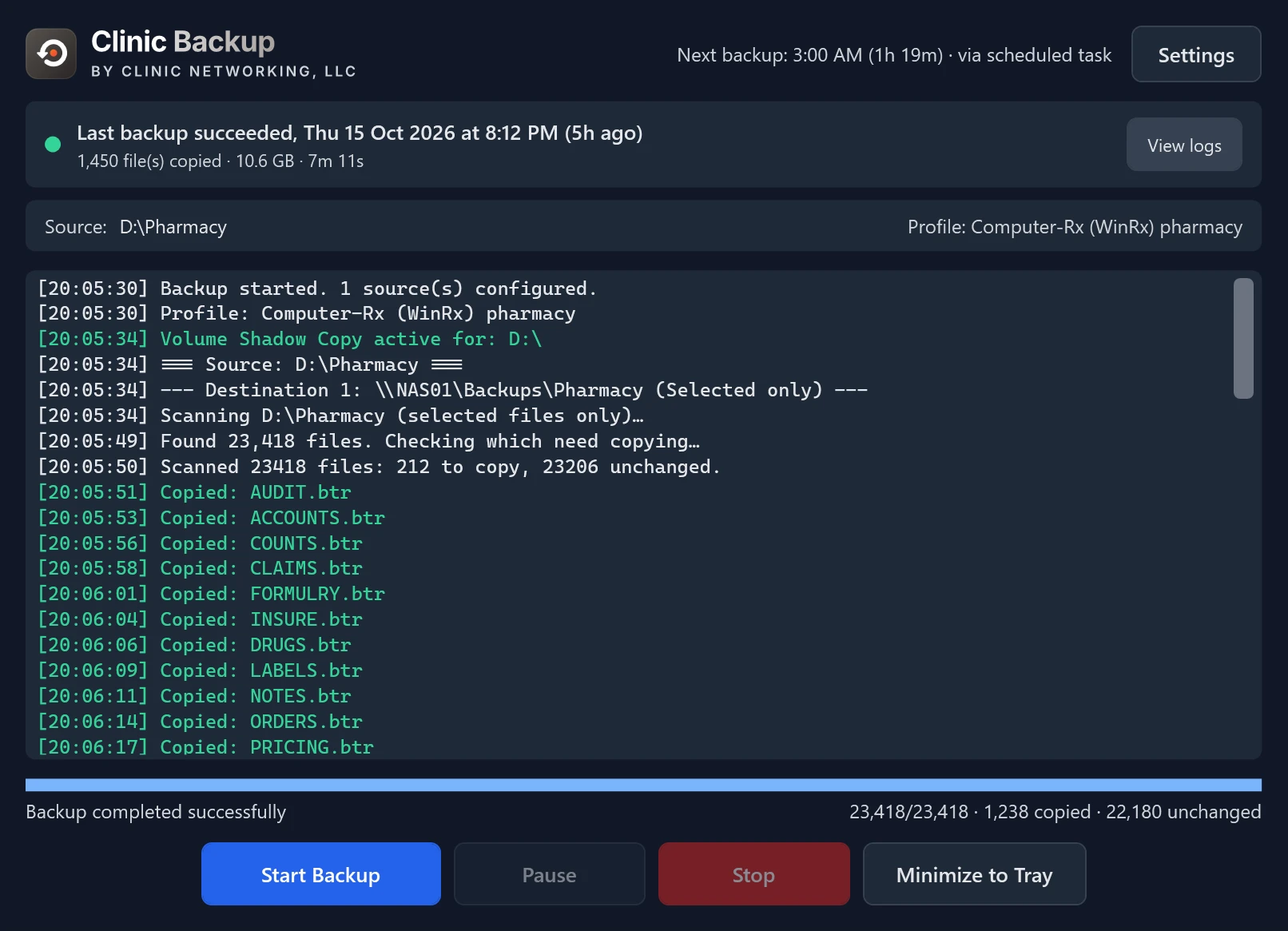
Databases and files still in use are copied from a snapshot Windows takes at that moment, so you get one consistent copy instead of a file that changed while it was being copied.
Copies to more than one place
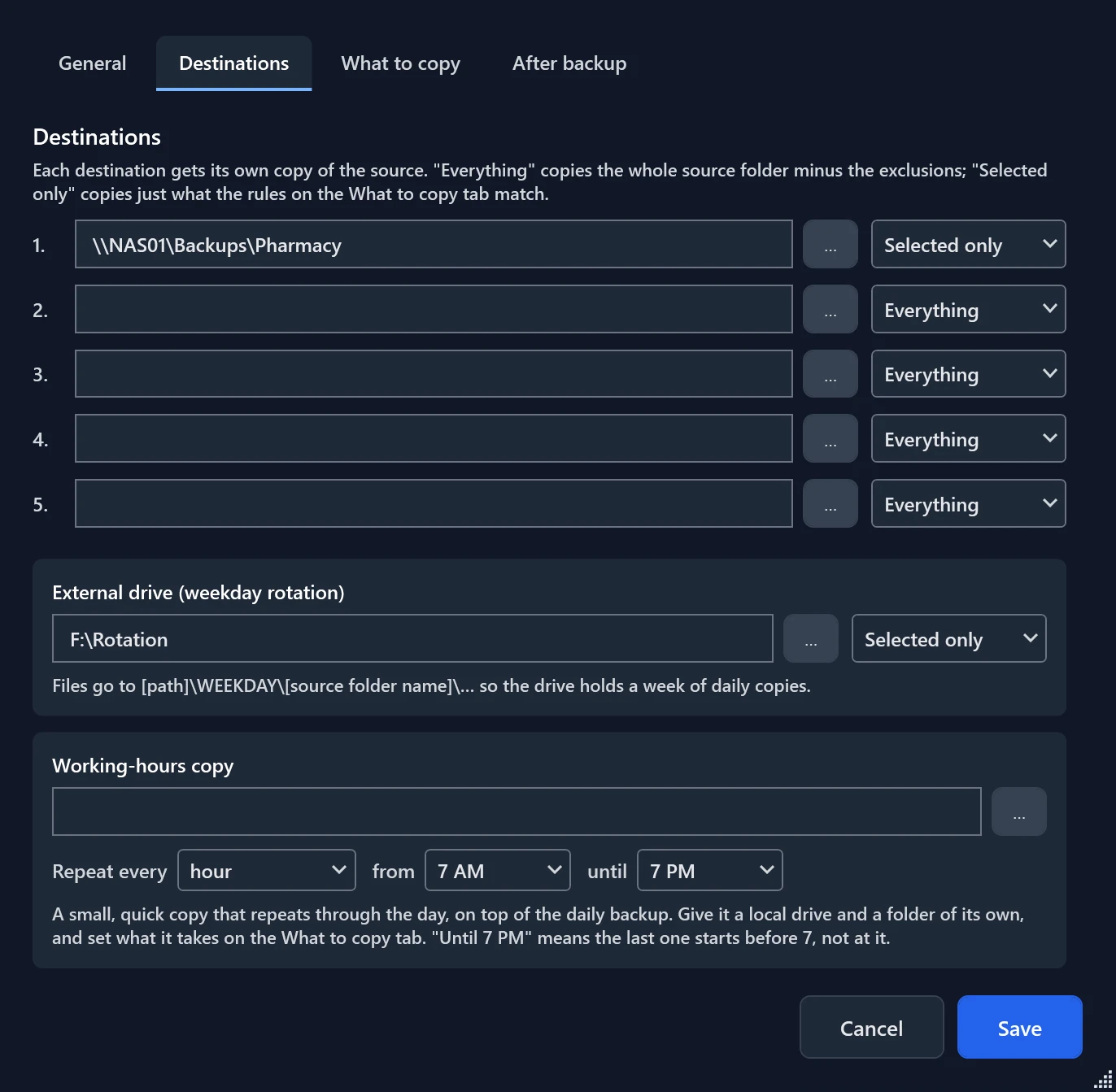
Up to five folders, local or on a network share, plus an external drive with its own folder for each day of the week. Your backup survives a failed drive.
Only copies what changed
A record of every file already copied means anything untouched is skipped, so a nightly backup of a folder that barely moved takes minutes.
Checked on every run
Backups usually fail quietly. Here is what Clinic Backup checks on every run, so that “completed successfully” means exactly that.
- Every copy is verified. After each file, the size on the destination is compared against the size read. A file cut short by a network share dropping halfway through is caught, and the run is marked failed.
- Room is checked first. What's about to be copied is added up, and the destination has to have space for all of it with headroom to spare, before anything is written.
- The backup stays out of the source. Point a destination at a folder inside the source and that destination is refused, so the backup never copies itself into itself
- Shortcuts and loops are handled. A shortcut that points back at a folder higher up is skipped, and the scan stops at a sensible folder depth, so every scan finishes.
- Stop means stop. Hit Stop and the run is marked failed, because it's incomplete. Whatever copied before you stopped is still there.
- One run at a time. If a backup is still going when the next one is due, the second one steps aside instead of both writing to the same folders. A day is only recorded as done when the run succeeded.
Every one of those checks was tested against a real data set of more than 1.5 million files, and we went back through the results by hand to confirm that what landed on the drive was what we meant to copy.
More than one copy, in more than one place
A single copy is only as safe as the drive it sits on. Give this a few places to write, and the same nightly run fills all of them.
Up to five destinations
A second internal drive, the NAS in the closet, a folder on the server, or all of them. Anything Windows can reach by a path or a network share works, and each one keeps its own record of what it already has.
An external drive, by weekday
The drive you rotate off site gets a folder per day: MONDAY, TUESDAY, and so on. You get a week of copies instead of one, so Wednesday’s mistake never overwrites Tuesday’s good data.
Skip what you don’t need
Name folders to leave alone, or match files by pattern the same way you would in Explorer. Cache folders and rebuilt report piles are usually what makes a backup slow, and you can leave them out.
Files that are still open
Copying a database while something is writing to it can leave you with a file that looks fine and isn’t. Clinic Backup asks Windows for a snapshot first and copies from that, so everything comes from the same instant.
- Copies open files from a Windows snapshot
- Retries a file another program has locked
- Copies database files in full on every run
- Confirms each file that landed matches the original
The installer sets up the nightly run with the access this needs, so snapshots are on by default and there’s nothing to think about.
Something to run afterwards
Plenty of software wants to be told a backup happened. You can have a value written into a settings file, or a program of your own started, and choose whether that happens on every run, only the good ones, or only the bad ones.
- Write a key into an INI file, dated automatically
- Or launch a program with the arguments you choose
- Fill in the date, time, weekday, source folder, or the result
- Runs on success, on failure, or every time
Somebody already worked out what to back up
A profile is a recipe for one kind of machine: what to copy, what to leave out, which files to always copy in full, and what to do once the run finishes. Point Clinic Backup at a folder and a matching profile is picked up where there is one.
- Computer-Rx pharmacies. The same nightly job as the AutoBackup that came with WinRx, with the database files taken while they’re open and every copy checked. The backup date is stamped into winrx.ini once the run has succeeded, so nothing downstream changes, and the report folder WinRx rebuilds daily and the drug images you can redownload are left out.
- Design and video studios. Copies the project files and skips the Premiere and After Effects cache and preview folders, which are large, constantly rewritten, and rebuilt on their own anyway.
- Everyday Windows machines. Eleven more come in the box: a whole user folder or just its documents and pictures, Office files and PDFs wherever they sit, photos and video, a shared drive, QuickBooks Desktop, Outlook mail files, browser bookmarks and settings, application settings, database files, and code projects.
- Or your own. Set one machine up the way you want, save that as a profile, and hand the profile to the next machine instead of doing the setup again from memory.
Applying a profile copies its settings onto your machine, and from there they’re yours to adjust, with everything stored on that machine. Need one for a kind of machine that isn’t here? Ask. That’s how the list grows.
File and folder replication, not disaster recovery
Clinic Backup replicates files and folders to drives you own, in your building. That covers the drive that dies and the folder somebody deleted, which are most of the bad days. This is not a disaster recovery solution, and a fire or ransomware that reaches every drive on your network is not covered.
There’s no separate restore tool to learn. Your backup is plain files and folders where you told it to put them, so you copy back what you need in File Explorer, and getting your data back never depends on our software.
If offsite and versioned protection is what you need, give us a call and we’ll talk through what that looks like. You can still run this in the meantime, and plenty of people do.
Clinic Backup for Windows
Version 2.3.0 · Windows 10 & 11 (64-bit) · Free
Download installer
No charge, no trial, no account. Take it and use it.
By installing, you agree to the End User License Agreement.
Signed and published by Clinic Networking
The installer is code-signed, so the prompts list Clinic Networking, LLC as the publisher.
Runs on
- Windows 10 (64-bit)
- Windows 11 (64-bit)
- Any folder Windows can reach, including network shares
To install it
- Administrator rights, since it installs for the whole machine
- Sets up the nightly run for you
- Adds the .NET 8 Desktop Runtime if the machine needs it
Questions we get asked
Is this the same program as Better AutoBackup?
Yes. Better AutoBackup was renamed Clinic Backup in October 2026. Copies already installed keep updating the way they always have, and your folders, destinations and schedule stay just as you set them.
Is it really free?
Yes. No charge, no trial period, no license key, no account to make, nothing that expires. We wrote this because we needed it, and we're happy to share. If you'd like us to do the setup, that's a support call, and we'd talk about that separately.
Do we need an administrator to install it?
Yes. The install is for the whole machine and sets up a scheduled task with the access needed to copy open databases, so whoever installs needs to click through a normal Windows admin prompt.
How does it restore?
Your backup is ordinary files and folders sitting where you told it to put them, so you copy back what you need with File Explorer. There's no separate restore tool to learn, and getting your data back never depends on our software.
What happens to a file we delete?
The copy stays in the backup. Clinic Backup only adds and updates files on the destination, so deleting a file at the source leaves your copy in place. That's deliberate, so an accidental deletion can be recovered from last night's copy.
Will it slow the machine down while it runs?
A few files are copied at a time, and you can turn that number down in Settings. Most people schedule the run for the middle of the night and never notice. The first run is the slow one because everything is new. After that, only whatever changed that day gets copied.
Does it send our data anywhere?
Your data, no. Clinic Backup runs on your machine, reads your folders, and writes to the destinations you chose. There's no cloud service behind this, and nothing about your business leaves the machine. The only thing contacted is our update server, plus an optional shared list of backup profiles if you choose to set one up.
Will Windows warn us about the installer?
No. The installer is code-signed, so you'll see Clinic Networking, LLC as the publisher.
How do we know it ran last night?
Open the app and the banner across the top tells you whether the last run succeeded, when, and what moved. A results file with SUCCESS or FAILED and a line for anything that went wrong is written too, daily logs are kept for a month, and the result can print after every run if you want paper at the counter.
How does it update?
On its own. A new signed build is checked for and installed quietly, so the machine in the back room stays current. You can turn that off in Settings if you'd rather install updates yourself.
Does it replace a real backup plan?
Most of one. Files are copied to drives you own, in one building, which handles a failed drive or a deleted folder. A fire, a flood, or ransomware that reaches every drive on the network is not covered. If you need offsite and versioned protection, call us and we'll talk through what that looks like.
Want us to set it up?
The app is free either way. Picking the right folders, sizing the drive, and testing that a file actually comes back is what makes a backup worth having, and that’s a short phone call.
Already a client? support@clinicnetworking.com